
This guide will help you pair your EVO Force-1 remote control with your device. The pairing process is typically automatic during initial setup and takes less than 2 minutes to complete.
TABLE OF CONTENTS
Initial Remote Setup
Before pairing your remote, ensure it's properly prepared and functioning:
Installing Batteries Correctly
- Locate the battery compartment on the back of your EVO Force-1 remote control
- Open the battery compartment cover by sliding it off or lifting the tab
- Insert two AAA batteries (included in your package)
- Pay careful attention to the +/- orientation markings inside the battery compartment
- Match the positive (+) end of each battery with the positive (+) marking
- Match the negative (-) end of each battery with the negative (-) marking
- Close the battery compartment cover securely
Important: Incorrect battery orientation will prevent the remote from functioning. Ensure batteries are inserted in the correct direction.
Testing Remote Power (Amber Light Indicator)
After installing batteries, verify the remote is working:
- Press any button on the remote control
- Look for the amber (orange) activity light at the top of the remote near the microphone
- The amber light should illuminate briefly when you press a button, indicating the remote has power
- If the light doesn't appear:
- Check that batteries are installed correctly with proper +/- orientation
- Verify batteries are fresh and have a charge
- Try a different set of batteries
What the amber light means: The amber activity indicator shows that the remote is powered on and transmitting signals.
Pairing Process
Your EVO remote pairs with the device during initial setup. This process is usually automatic and requires minimal interaction.
On-Screen "Pair Your TV Remote" Instructions
When you first power on your EVO Force-1 device:
- After connecting your device to your TV and selecting the correct HDMI input, the "Pair Your TV Remote" screen will automatically appear
- The screen will display instructions for pairing your remote with the device
- In most cases, you simply need to press the TiVo button once on your remote to begin the automatic pairing process
- The remote will pair automatically within a few seconds
Alternative pairing method (if prompted on screen):
- Press and hold both the TiVo button and the Back button at the same time
- Hold both buttons until the activity light at the top of the remote flashes quickly (rapid flashing)
- Release both buttons
- The pairing process will begin automatically
- The activity light will flash amber briefly during pairing
Note: The TiVo button is the silver circular button near the top of the remote, and the Back button is typically located on the left side of the remote.
Using Directional Pad and OK Button
During and after pairing, you'll use these essential remote controls:
Directional Pad (D-pad):
- The directional controller navigates up, down, left, and right through on-screen menus
- Use it to move your cursor in any direction to select options
- Located in the center area of the remote
OK Button:
- The OK button is the center button within the directional pad
- Press OK to accept or confirm the current selection
- Use it to proceed through setup screens after pairing
Confirming Successful Pairing
You'll know the pairing was successful when:
- The TV screen displays a success message or automatically proceeds to the next setup step
- The remote's activity light stops flashing and returns to normal (brief amber flash when buttons are pressed)
- The remote is responsive when you press buttons to navigate on-screen menus
- You can use the directional pad to move through menu options
- The screen typically advances to the "Welcome" screen and language selection
Typical pairing time: The automatic pairing process takes approximately 30 seconds or less.
Remote Button Overview
Understanding your remote's essential buttons will help you navigate during and after pairing:
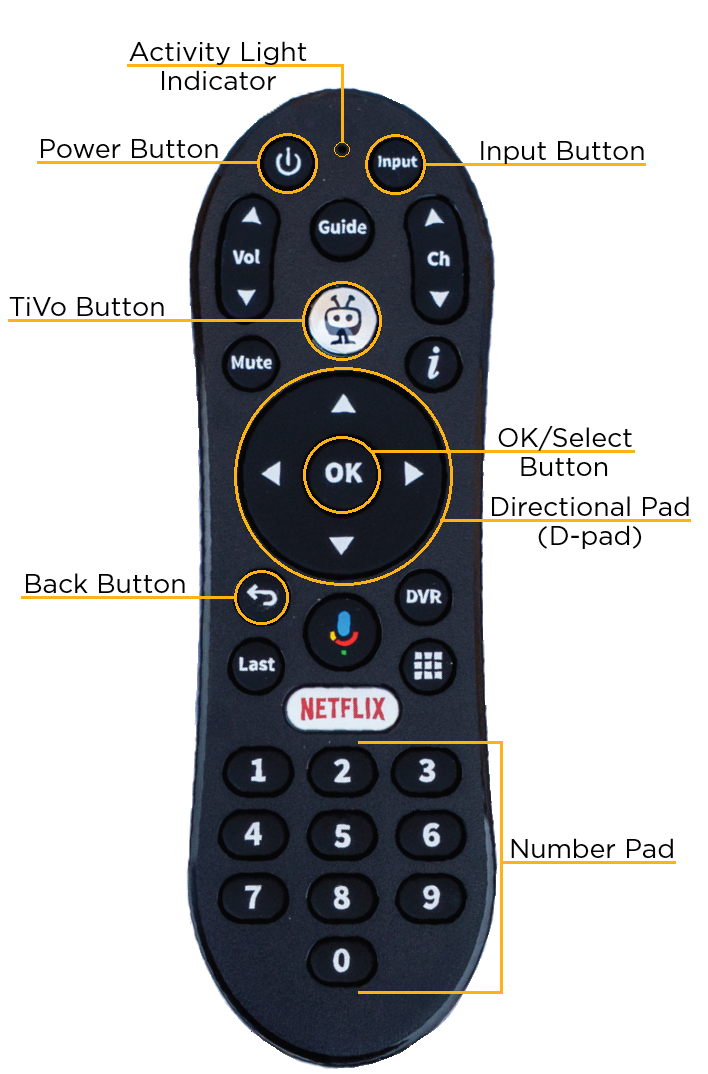
Power Button
- Location: Top of the remote
- Function: Turns your TV on or off (once remote is paired with TV)
- Note: During initial device pairing, this button is not yet programmed to control your TV
Back Button
- Location: Left side of the remote, below the TiVo button
- Function: Opens the main menu or returns to the previous screen
- During pairing: Used in combination with TiVo button for manual pairing
Directional Pad (D-pad)
- Location: Center of the remote
- Function: Navigates up, down, left, and right to move your cursor through menus
- Four directions: Press the top, bottom, left, or right sections to move in that direction
- Usage: Essential for selecting options during setup and navigation
OK/Select Button
- Location: Center button within the directional pad
- Function: Accepts and confirms the current selection
- Usage: Press to proceed through setup screens and select menu items
- Alternative name: May also be referred to as the "Select" button
Additional Important Buttons
TiVo Button:
- Silver circular button near the top of the remote
- Takes you to the main menu after setup
- Used during pairing process
Microphone/Voice Search Button:
- Located near the activity light
- Used for voice search and Google Assistant commands
Activity Light Indicator:
- Amber light at the top of the remote near the microphone
- Flashes when buttons are pressed or during pairing
- Indicates remote power and transmission status
Troubleshooting
If you encounter issues during the pairing process, try these solutions:
Remote Not Responding During Pairing
Problem: You press buttons on the remote but nothing happens on screen
Solutions:
- Check battery installation:
- Remove the battery compartment cover
- Verify batteries are installed with correct +/- orientation
- Ensure batteries are making proper contact with the terminals
- Try installing fresh batteries to rule out low battery power
- Test the remote power:
- Press any button and look for the amber activity light
- If no light appears, the remote is not receiving power
- Replace batteries with new ones
- Check device power:
- Verify your EVO Force-1 device is plugged in and powered on
- Look for indicator lights on the device
- Ensure the device has had 30-60 seconds to boot up
- Retry the pairing process:
- Press and hold the TiVo button and Back button simultaneously
- Hold until the activity light flashes quickly
- Release both buttons and wait 30 seconds for automatic pairing
- Check for obstructions:
- Ensure clear line of sight between remote and device
- Remove any objects blocking the path
- Move closer to the device (within 10-15 feet)
Pairing Screen Not Appearing
Problem: You don't see the "Pair Your TV Remote" screen when you power on the device
Solutions:
- Verify correct HDMI input:
- Use your TV's remote to change input sources
- Select the HDMI input where your EVO device is connected
- Refer to "How to Connect Your EVO Device to Your TV" article for detailed instructions
- Check physical connections:
- Verify HDMI cable is fully inserted at both ends
- Confirm power cable is securely connected to device and outlet
- Ensure TV is powered on
- Allow boot time:
- Wait 30-60 seconds after plugging in power for device to fully boot
- First-time startup may take longer as the device downloads updates
- Power cycle the device:
- Unplug the power adapter from the wall outlet
- Wait 10 seconds
- Plug the power adapter back in
- Wait for the pairing screen to appear (up to 60 seconds)
- Check TV compatibility:
- Ensure your TV has working HDMI ports
- Try a different HDMI port on your TV
- Verify HDMI cable is functioning by testing with another device
Re-Pairing the Remote If Needed
If your remote loses its pairing or stops responding after initial setup, you can re-pair it manually:
Manual Re-Pairing Process:
- On the remote, press and hold both the TiVo button and the Back button at the same time
- Continue holding both buttons until the activity light at the top of the remote turns solid red
- Release both buttons
- The activity light will flash amber briefly
- The TV screen may show re-pairing instructions (if it's a previously paired remote, it may not)
- Do not press any buttons on the remote
- Wait approximately 30 seconds for the automatic pairing process to complete
- The screen will return to regular programming when pairing is successful
If automatic re-pairing fails:
- Retry steps 1-7 above one more time
- If pairing fails again, you may need to perform a factory reset of the remote (see below)
Factory Reset the Remote Control
When to use this option:
- Only use factory reset if you are unable to re-pair the remote using the manual re-pairing process above
- Or if instructed by FC Connexion Technical Support
Warning: A factory reset will unpair the remote from the EVO box and any other accessories it's configured with (TV, soundbar, audio receiver, etc.).
Factory Reset Steps:
- Press and hold both the TiVo button and the TV Power button at the same time for approximately 3 seconds
- The activity light will turn solid red
- Release both buttons
- Press the Volume Down button 3 times
- Press the TiVo button once
- The activity light will flash red 3 times, confirming the reset
- Follow the manual re-pairing process above to pair the remote again
After factory reset: You'll need to re-pair the remote with both your EVO device and your TV.
Remote Works with Device But Not TV
Problem: Remote pairs successfully with EVO device but doesn't control TV power or volume
Solutions:
- This is normal during initial pairing - the remote is first paired with the EVO device, then separately paired with your TV
- TV pairing occurs later in the setup process during the "TV set up" screen
- Refer to the article "How to Pair Your EVO Remote with Your TV" for detailed TV pairing instructions
- You can manually pair the remote to your TV through Settings > Remote Settings > TiVo Remote > Change TV Set Up
Next Steps After Pairing
Once your remote is successfully paired with the EVO Force-1 device:
- Continue with the on-screen setup process
- Use the directional pad to navigate menu options
- Press OK to select and confirm choices
- Follow the remaining setup steps, including:
- Language selection
- Wi-Fi network connection
- Google Account sign-in
- FC Connexion account login
- TV brand pairing (to control TV power and volume)
For complete setup instructions, refer to the "EVO Force-1 Initial Setup: Step-by-Step Guide" article.
Quick Reference: Pairing Button Combination
For quick access, here's the manual pairing button combination:
- Press and hold: TiVo + Back buttons simultaneously
- Until: Activity light flashes quickly (or turns solid red for re-pairing)
- Then: Release both buttons and wait 30 seconds
Need Help?
If you're unable to pair your remote after trying these troubleshooting steps:
FC Connexion Technical Support
Phone: 970-207-7873
Available to assist with remote pairing issues
When calling support, have the following information ready:
- Description of what happens when you attempt to pair
- Whether the amber activity light appears when you press buttons
- What appears on your TV screen (or if the screen is blank)
- Battery condition and installation verification
- Any troubleshooting steps you've already attempted
Was this article helpful?
That’s Great!
Thank you for your feedback
Sorry! We couldn't be helpful
Thank you for your feedback
Feedback sent
We appreciate your effort and will try to fix the article