
This guide will help you physically connect your EVO Force-1 device to your television. The connection process takes approximately 5-10 minutes.
TABLE OF CONTENTS
- Equipment Needed
- Step-by-Step Connection
- Selecting the Correct Input Source
- Troubleshooting Connection Issues
- Need Help?
Equipment Needed
Before beginning, gather the following items:
EVO Force-1 Device and Power Supply
- Your EVO Force-1 Android set-top box
- Power cable (included in box)
HDMI Cable
- HDMI cable (included in your EVO package)
Note: If you have an older TV without HDMI ports, this will not work.
Available HDMI Port on TV
- Your TV must have at least one available HDMI port
- Most modern TVs have 2-4 HDMI ports, typically labeled HDMI 1, HDMI 2, etc.
- Check the back or side panel of your TV to locate available ports
Additional Recommended Items
- Surge-protected power strip or wall outlet
- Your TV's remote control (you'll need this to select the correct input)
Step-by-Step Connection
Follow these steps in order to properly connect your EVO Force-1 device to your TV:
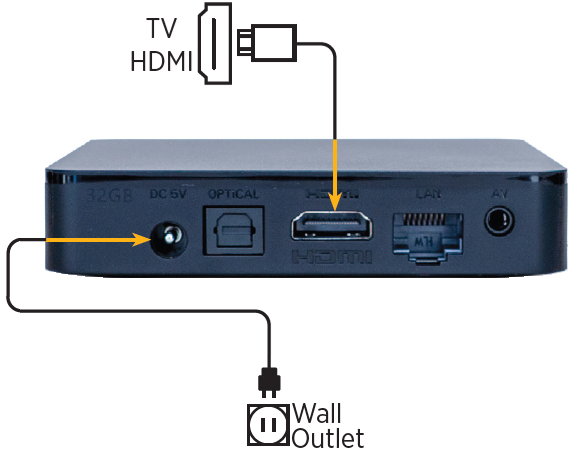
Step 1: Connecting HDMI Cable to Device HDMI Port
- Locate the HDMI port on your EVO Force-1 device (it's on the back of the device)
- Take one end of the HDMI cable provided in your package
- Insert the HDMI cable firmly into the HDMI port on the EVO Force-1 device
- Ensure the cable is fully inserted - you should feel it click into place
Important: Make sure the HDMI connector is oriented correctly. It should slide in smoothly without forcing.
Step 2: Plugging HDMI into TV's HDMI Port
- Locate an available HDMI port on your television (check the back or side panel of your TV)
- Take the other end of the HDMI cable
- Plug it firmly into one of your TV's HDMI ports
- Make note of which HDMI port number you used (HDMI 1, HDMI 2, HDMI 3, etc.) - you'll need this information in the next section
Tip: If possible, use HDMI 1 as it's typically the easiest to remember and often the default input on many TVs.
Step 3: Connecting Power Cable to Device
- Locate the power port on your EVO Force-1 device (labeled "DC 5V" on the back of the device)
- Take the Power cable from your package
- Connect the Power cable into the DC 5V power port on your device
- Ensure the connection is secure
Step 4: Plugging Power Adapter into Wall Outlet
- Plug the Power adapter into a nearby wall outlet or surge-protected power strip
- The device will automatically power on - there is no power button on the EVO Force-1 device
- Allow 30-60 seconds for the device to boot up completely
Recommendation: Use a surge-protected power strip to protect your device from power surges.
Selecting the Correct Input Source
After physically connecting your device, you need to configure your TV to display the EVO Force-1 screen:
Using TV Remote to Select HDMI Input
Turn on your TV using your TV's remote control (not the EVO remote)
- Locate the "Input" or "Source" button on your TV's remote control
- This button may also be labeled as "HDMI," "Input Select," or have an icon showing multiple inputs
- Press the Input/Source button to open the input selection menu
- Use the arrow buttons on your TV remote to navigate through the available inputs
- Select the HDMI input that matches the port number where you connected your EVO device
Example: If you plugged the HDMI cable into HDMI 2 on your TV, select "HDMI 2" from the input menu.
Identifying Which HDMI Port Was Used
If you're unsure which HDMI port you used:
- Look at the physical HDMI ports on your TV - they should be labeled next to each port
- Follow the HDMI cable from your EVO device to the TV to identify which port it's plugged into
- If the labels are unclear, try each HDMI input option on your TV's input menu until you see the EVO pairing screen
Tip: Most TVs allow you to cycle through inputs by repeatedly pressing the Input/Source button.
Verifying Pairing Screen Appears
Once you've selected the correct HDMI input:
- You should see the "Pair Your TV Remote" screen appear on your television display
- This confirms that your EVO device is properly connected and powered on
- The screen will provide instructions for pairing your EVO remote control with the device
What you should see: A screen with instructions to pair the EVO remote, typically showing an image of the remote and pairing steps.
Troubleshooting Connection Issues
If you're experiencing problems connecting your EVO device, try these solutions:
No Picture on Screen
Problem: TV screen is blank or shows "No Signal" message
Solutions:
- Verify power connection:
- Check that the power adapter is fully plugged into the wall outlet
- Confirm the power cable is securely connected to the device's DC 5V port
- Try a different wall outlet to rule out outlet issues
- Look for any LED indicator lights on the device showing it's powered on
- Check HDMI cable connection:
- Ensure both ends of the HDMI cable are fully inserted
- Remove and reconnect both ends of the HDMI cable, pushing firmly until you hear a click
- Try a different HDMI cable if you have one available to rule out cable failure
- Allow boot time:
- Wait 30-60 seconds after plugging in power for the device to fully boot up
- The device may take time to initialize on first startup
- Try a different HDMI port:
- Some HDMI ports on TVs may be damaged or disabled
- Unplug the HDMI cable from the current TV port and try a different HDMI port
- Remember to change the input selection to match the new port
Wrong Input Source Selected
Problem: TV is on but showing cable TV, DVD player, or another device instead of the EVO pairing screen
Solutions:
- Use your TV's remote control (not the EVO remote) to access the input menu
- Press the Input/Source button repeatedly to cycle through all available inputs
- Look for the input labeled with the HDMI port number you're using (HDMI 1, HDMI 2, etc.)
- If unsure which port you used:
- Try each HDMI input option one by one until you see the EVO pairing screen
- Check the physical HDMI ports on your TV to identify which one has the cable connected
- Refer to your TV manufacturer's documentation:
- Different TV brands have different methods for changing inputs
- Consult your TV's user manual for specific instructions on selecting HDMI inputs
HDMI Cable Not Fully Inserted
Problem: Connection seems loose or picture is intermittent
Solutions:
- Check the device end:
- Unplug the HDMI cable from the EVO Force-1 device
- Inspect the HDMI port and cable connector for any visible damage or debris
- Reinsert the cable firmly until it clicks into place
- The connector should be flush with the device
- Check the TV end:
- Unplug the HDMI cable from your TV's HDMI port
- Check for any obstructions or bent pins in the TV's HDMI port
- Reinsert the cable firmly, ensuring proper alignment
- Push until the connector is fully seated in the port
- Cable orientation:
- HDMI cables have a specific orientation and won't fully insert if upside down
- Look at the shape of the connector and match it to the port opening
- Do not force the cable - it should slide in smoothly when oriented correctly
- Test the cable:
- If available, test the HDMI cable with another device (DVD player, game console, etc.)
- If the cable doesn't work with other devices, it may be defective
- Contact FC Connexion support for a replacement cable if needed
Device Powers On But Still No Picture
Problem: Device appears to have power but no picture displays
Solutions:
- Perform a power cycle:
- Unplug the power adapter from the wall outlet
- Wait 10 seconds
- Plug the power adapter back in
- Wait 30-60 seconds for the device to reboot
- Check for firmware updates:
- The device may be downloading updates on first boot
- This can take several minutes
- Allow up to 5 minutes for initial startup and updates to complete
- TV compatibility:
- Ensure your TV supports HDMI input (most TVs manufactured after 2005 have HDMI)
- Very old TVs may require the AV connection option using a 3.5mm RCA cable (sold separately)
Additional Troubleshooting Tips
If you've tried all the above solutions and still have no picture:
- Try connecting the EVO device to a different TV if available to determine if the issue is with the device or your TV
- Check that your TV is functioning properly by switching to other inputs (cable, antenna, etc.)
- Inspect the HDMI ports on your TV for visible damage
- Contact FC Connexion Technical Support at 970-207-7873 for further assistance
Next Steps
Once you've successfully connected your EVO device and see the "Pair Your TV Remote" screen:
- Continue with pairing your EVO remote control
- Complete the on-screen setup process for Wi-Fi and account configuration
- Begin enjoying your FC Connexion TV service
For detailed instructions on completing the setup process, refer to the "EVO Force-1 Initial Setup: Step-by-Step Guide" article.
Connection Checklist
Use this quick checklist to verify your connections:
- HDMI cable connected from EVO device to TV HDMI port
- Power cable connected to device's DC 5V port
- Power Plug plugged into wall outlet or surge protector
- TV is powered on
- Correct HDMI input selected on TV
- "Pair Your TV Remote" screen visible on TV display
Need Help?
If you experience any difficulties connecting your EVO Force-1 device or have questions:
FC Connexion Technical Support
Phone: 970-207-7873
Available to assist with connection issues and troubleshooting
When calling support, have the following information ready:
- The HDMI port number you're using on your TV
- Your TV's brand and model number
- A description of what appears on your TV screen (or if the screen is blank)
- Any troubleshooting steps you've already attempted
Was this article helpful?
That’s Great!
Thank you for your feedback
Sorry! We couldn't be helpful
Thank you for your feedback
Feedback sent
We appreciate your effort and will try to fix the article